Everyone needs thisSearch Console + sitemap — so Google can index your website.
Maps is optionalOnly if customers visit you or you go to them. Skip if you are online-only.
You keep the accountsZyco can help, but you stay the owner.
Online-only business? Do Step 1 and Step 2 below. Skip Google Business Profile / Maps — Google often suspends Maps listings for businesses with no office and no in-person service.
1
Add your site in Google Search Console
This tells Google your website exists.
- Go to search.google.com/search-console and sign in.
- Click Add property → choose Domain → type only your domain, like
yourbusiness.com(no https, no www). - Google shows a verification code. Copy it and paste it in the form at the bottom of this page — we add it on hosting for you.
- When we email you that it’s ready, go back to Search Console and click Verify.
You don’t need hosting access. Send us the code. We handle the technical part.
2
Submit your sitemap (the “map”)
A sitemap is a list of your pages so Google can find them faster.
- In Search Console, open the left menu. Under Indexing, click Sitemaps.
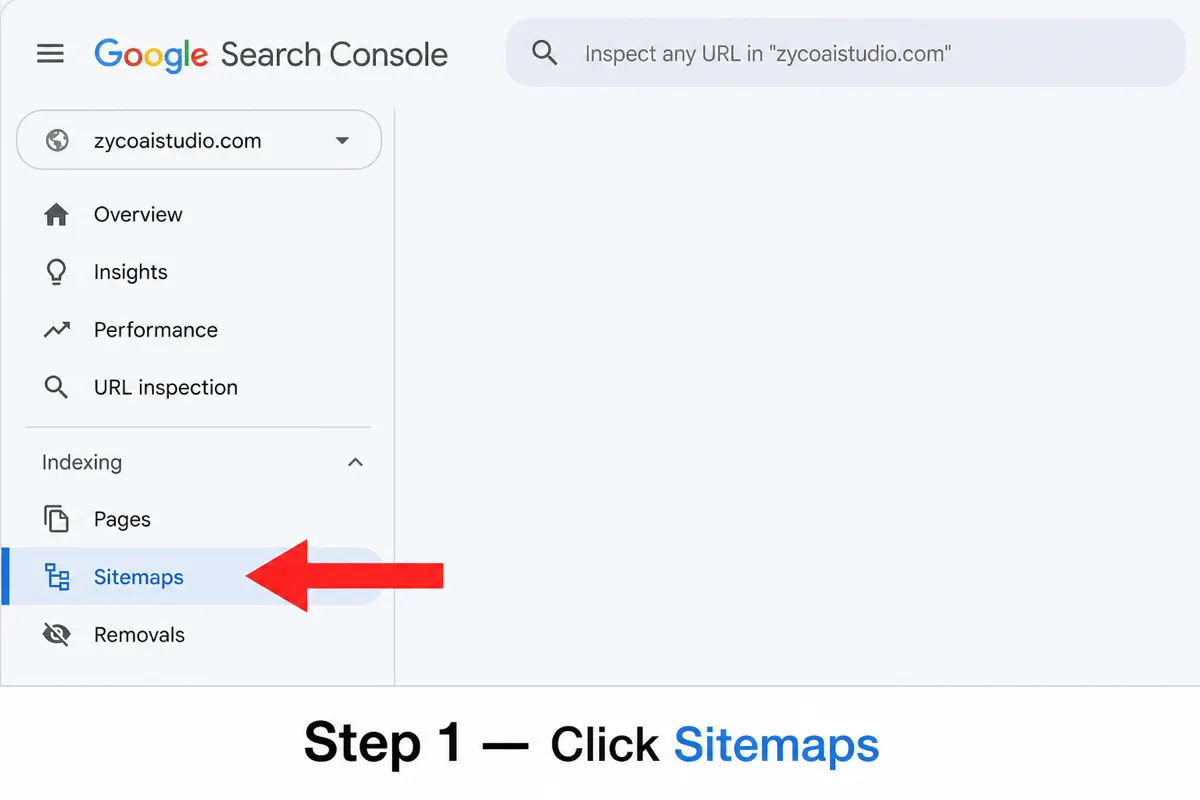
Click Sitemaps under Indexing. - In the box Add a new sitemap, type exactly:
sitemap.xml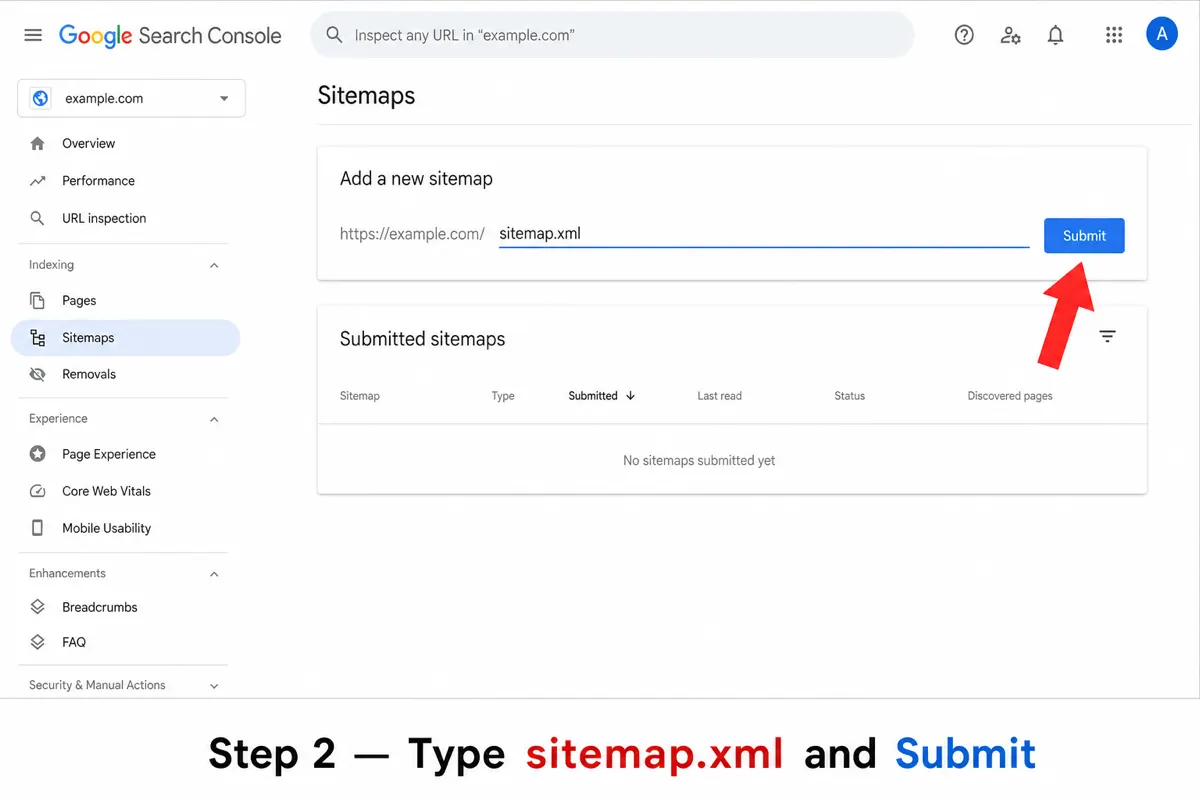
Type sitemap.xml, then click Submit. - Click Submit. Wait a few seconds — status should say Success.
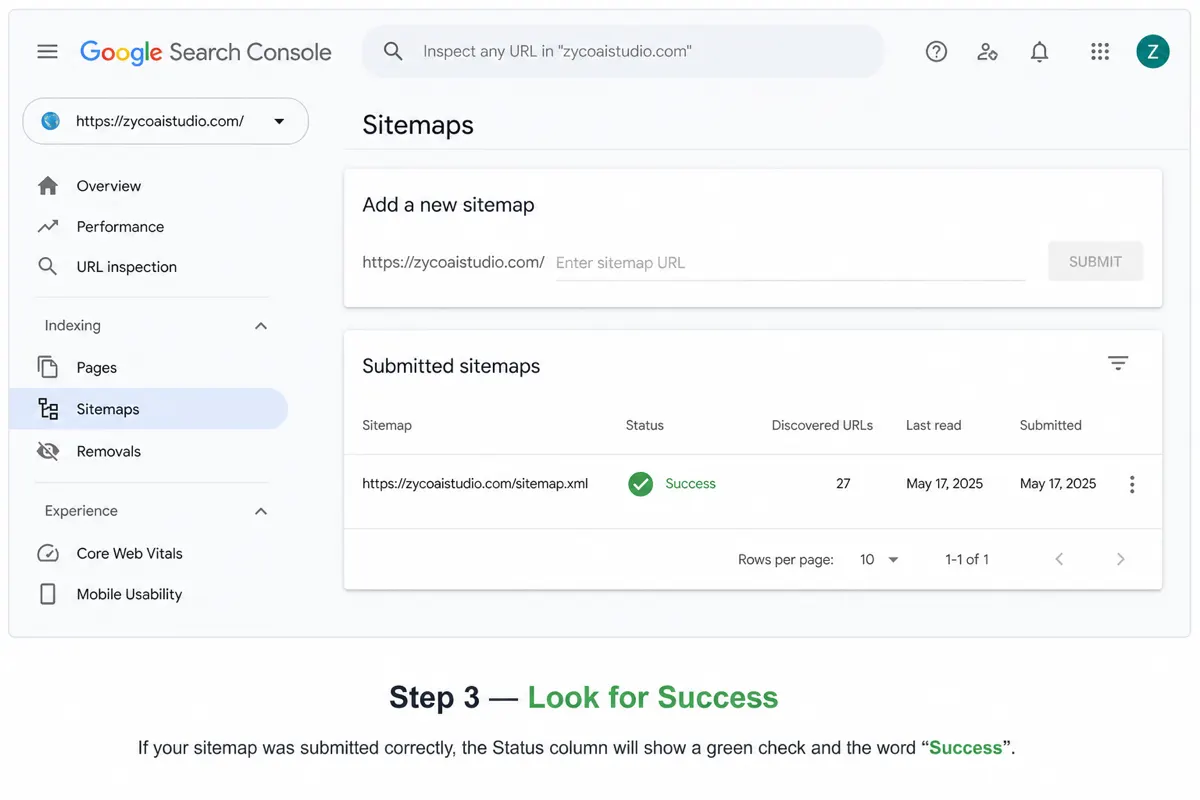
Done when you see Success.
Full address Google will use:
https://yourbusiness.com/sitemap.xml — you only type sitemap.xml in the box.3
Google Maps / Business Profile (only if local)
Skip this if you have no office and customers only contact you online.
Do this only if customers visit a location, or you go to their location (plumber, cleaner, tutor with in-person visits, storefront, etc.).
- Go to business.google.com and sign in.
- Claim or add your business. Use the same name, phone, and website as your site.
- If you have no public storefront, choose service-area and hide your address.
- Complete Google’s verification, then add photos and ask for reviews.
Send your Google verification code
After Step 1, paste the code here. We’ll add it and email you when you can click Verify.
?
Want us to help?
Optional — you stay the owner.
Invite us without giving up your account:
- Search Console: Settings → Users → add Email Andy
- Business Profile (if you have one): Settings → Managers → add the same email as Manager
When will you show up?
- Website liveRight away
- Search Console verifiedSame day, after we add the code
- Sitemap SuccessUsually within minutes
- Showing in Google SearchOften 3–14 days
Need a change on your website?
Email Email Andy with what you want changed. We’ll handle the site updates.